
Koppel je AI
Spaicely werkt via je eigen AI. Kies welke je gebruikt en volg de stappen. Een account heb je nog niet nodig: dat maak je onderweg aan.
Je koppelt Claude, uitleg in het Engels
Andere AI kiezen
- Claude claude.ai en de desktop-app
- ChatGPT chatgpt.com of de ChatGPT-app
- Codex in de Codex-app
- Gemini gemini.google.com
- Mistral chat.mistral.ai, voorheen Le Chat
- Perplexity perplexity.ai
- Grok grok.com
- Programmeerhulpen Claude Code · Cursor · Gemini CLI · Codex · Qwen Code
- Ik werk zonder AI Ik upload mijn site zelf, in het dashboard of met de CLI
Staat je AI er niet bij? De chat van DeepSeek en van Qwen en Microsoft Copilot voor thuis kunnen nog geen eigen koppeling toevoegen. Welke AI's nog niet werken
Taal van de uitleg en de video
Kies de taal waarin je AI zijn knoppen toont. Dan heten ze in de video en de stappen precies zo.
How to connect Claude
Works on every Claude plan. On the free plan you can add one custom connector.
-
In Claude, open Customize and choose Connectors.
-
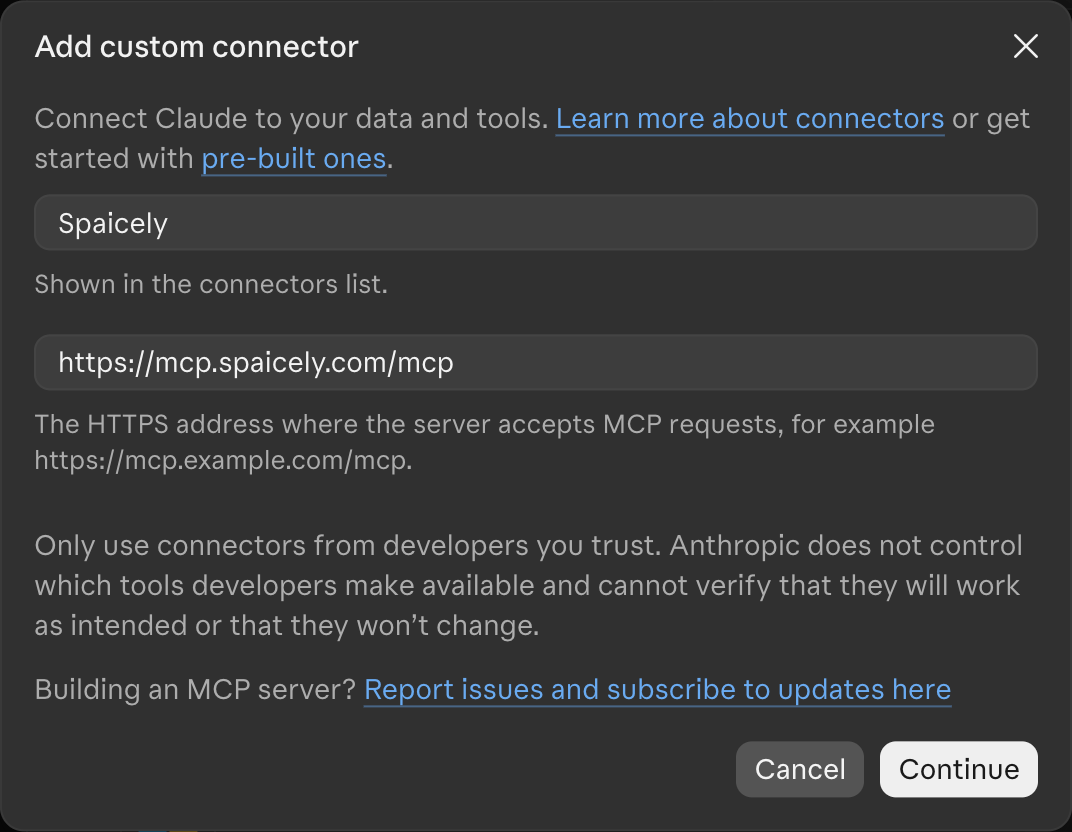
Click + Add and choose Add custom connector. Enter Spaicely as the name and this as the address:
https://mcp.spaicely.com/mcp -
Click Continue, then Add, then Connect. Claude sends you to Spaicely: sign in and tick the companies and sites it may work for.
-
Turn Spaicely on in a chat with the + at the bottom left, under Connectors.
On Claude Team or Enterprise, an owner adds the connector once under Organization settings, Connectors. Then you click Connect yourself.
Daarna bij Spaicely
Na de laatste stap opent Claude een pagina van Spaicely. Heb je al een account, dan log je in; zo niet, dan maak je het daar aan met je e-mailadres. Daarna vink je aan waar Claude mag werken en klik je op Toestaan. Dan is de koppeling klaar.
Log je eerst in, dan ziet deze pagina vanzelf wanneer de koppeling gelukt is.